Overview
Sharing is primarily used for cross-listed courses and is automatically set when the term is created. In certain circumstances, you may manually want to set the sharing attribute for courses that are not cross-listed. An example might be the lab/practice meeting section for various music classes (lecture portion), which may share a room for the students to practice in a combined setting.
Sharing a room in the optimizer
- Navigate to Academics > Terms.
- Click Optimizer for the Term you want to modify.
- Locate the course and click the checkbox to the left of the grid for two or more courses.
- From the pop-up menu, select Share Room. The sharing icon will appear for both courses.

To share a room for courses, the selected courses cannot be in a processed state (bookings created). If the courses have been processed, use the course editor to change the sharing attribute for the courses.
You can also remove the sharing attribute from a course that has not been processed by selecting the course and clicking the remove sharing icon in the pop-up menu.

Sharing a room from the course editor
- Navigate to Academics > Find Courses.
- Select the Term and press Search.
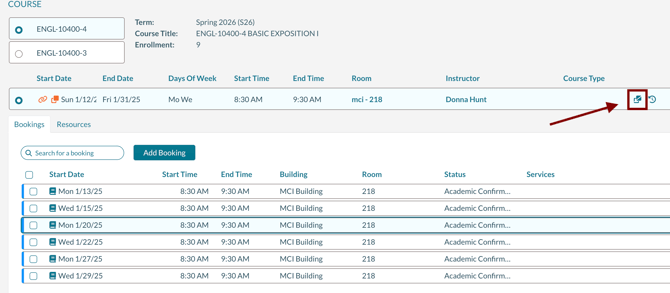
- Locate the course, and click on the course number to open the course editor.
- Click the Sharing icon to select a course to share with. The sharing icon will only be displayed if there are other courses with the exact meeting dates and times.
How to remove sharing
- Navigate to Academics > Find Courses.
- Select the Term and press Search.
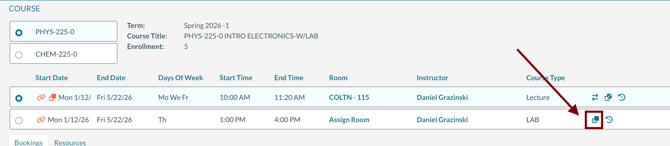
- Locate the course, and click on the course number to open the course editor.
- Click on the Remove Sharing icon to select a course to share with. The sharing icon will only be displayed if there are other courses with the exact meeting dates and times.