Launching the Availability Checker
To launch the Availability Checker:
-
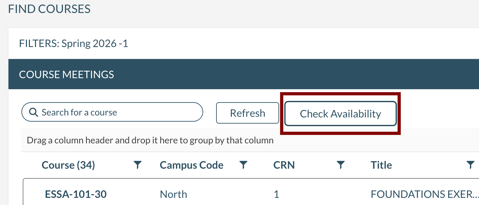
Open Find Courses
-
Select a term
-
Open the Availability Checker, located above the grid of courses
Using the Availability Checker
-
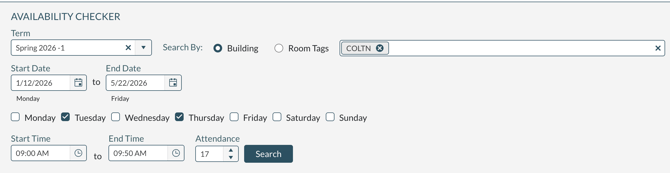
Select a Term.
-
Select Building(s) or Room Tag(s).
-
Adjust the starting and ending dates. These dates default to the dates entered on the Term.
-
Select the Days of the Week.
-
Enter the starting and ending time for the availability check.
-
Enter Attendance. This limits the rooms that can hold this number of students.
-
Press Search.
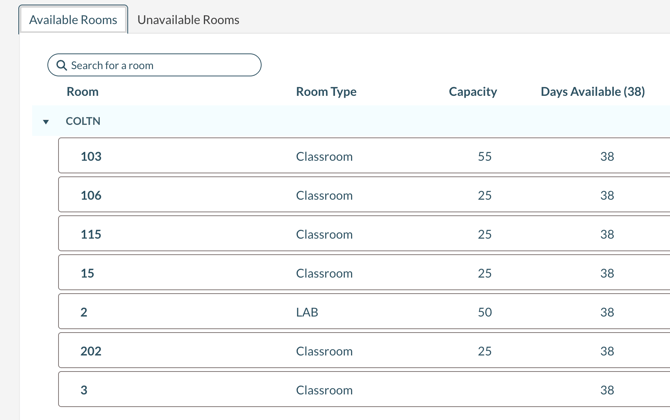
After pressing search the results are displayed in two tabs, available rooms and unavailable room:
Available Rooms:
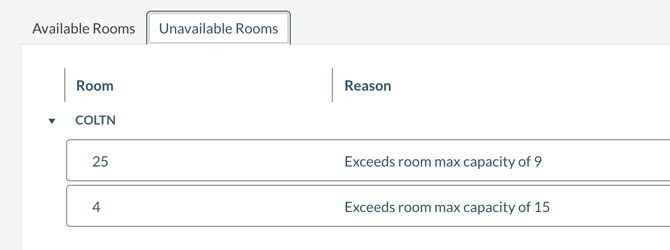
Unavailable Rooms: